I was out with friends the other day in a bar and somehow we started talking about when to throw InvalidOperationException from within your application code (exciting I know! :). I thought I'd clear this up as it can be a slightly gray area.
The description on MSDN is as follows: "The exception that is thrown when a method call is invalid for the object's current state".
So it should only ever be thrown if state within the class is not correct for the executing method.
A snip from Framework Design Guidelines book regarding InvalidOperationException is as follows: "Do throw an InvalidOperationException if the object is in an inappropriate state. The System.InvalidOperationException exception should be thrown if a property set or a method call is not appropriate given the objects current state. An example of this is writing to a FileStream that's been opened for reading.".
MSDN goes on comparing the difference between InvalidOperationException and ArgumentException and ArgumentNullException with: "If the method invocation failure is due to invalid arguments, then ArgumentException or one of its derived classes, ArgumentNullException or ArgumentOutOfRangeException, should be thrown instead.".
Thursday, August 07, 2008

Creating a Network and a Connection Programmatically on Windows Mobile - Part 1
Many folks within the community ask questions about forcing a specific connection or using a proxy server in order to connect to the internet etc. Note this is only one way of achieving connectivity and in my opinion probably the best way.
I'd like to write an article on how to create a network and add a connection to a network using the CSP's Configuration Server Providers available to us under Windows CE.
First of all we use the CM_Networks CSP to create our custom network that we will use when connecting to our network. Which looks like this:

So it is fairly simple as compared to other CSPs. I have written a couple of articles about CSPs in the past here.
What is a network in the Windows Mobile space? a network is a bucket used to group certain connections, such as VPN, GPRS, 3G, proxy, GSM etc It is what your application should use when connecting to your remote network typically in LOB - Line of Business apps you'd use some form of APN - Access Point Name. You can view a list of connections on your device by navigating to Settings\Connections\Connections.
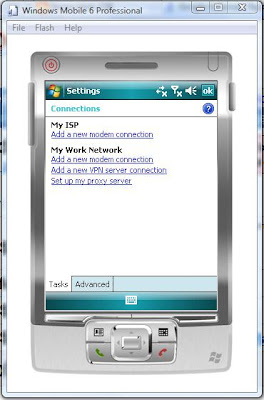
Connections screen
Navigating to the Advanced tab allows you to view or select different networks.
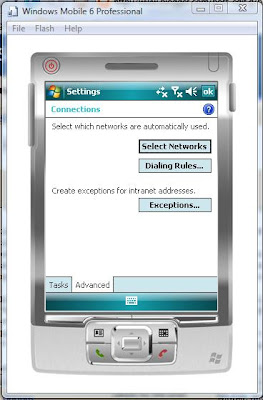
Advanced connections screen
Tapping select networks allows you to add, edit, delete or change connections.
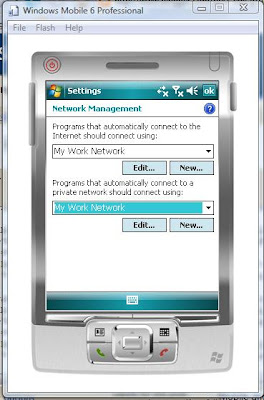
Network management
Our objective is to add our own network and a private APN to this network. We can then select this network when connecting to our APN using the Connection Manager built into phone devices.
The first thing we need is the Microsoft.WindowsMobile.dll and the Microsoft.WindowsMobile.Configuration.dll both found from the WM5 or WM6 SDKs. Note: if you are targeting pre WM5 then you will need to use P/Invoke - I will talk about this later.
To create out network so that we can add connections, we need to call the CM_Networks CSP as mentioned earlier. The interface for CSPs is XML.
In the following code example we create a network named Acme Corp. I decided to use the XmlTextWriter class here but could have done this just by loading the XML into DOM using the XmlDocument class. The XML looks like the following:
Now if we take a look in Connections\Advanced\Select Networks screen, we will see the newly created network. Although at the moment we have just a blank network with no connections defined.
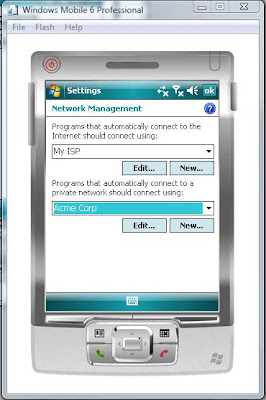
Our newly created network
Tapping edit will reveal no connections as yet...
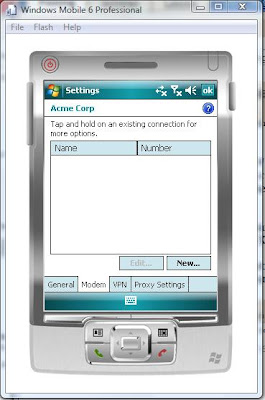
Empty network
Our next job is to add a connection to make this network useful. We do this using the CM_GPRSEntries CSP. Documentation on this CSP can be found here. 3G UMTS/HSDPA will be used if available although the CSP is named GPRS this is a little mis-leading.
Again we use the trusty old XmlTextWriter to create our XML file in order to provision to our device. The XML looks like the following:
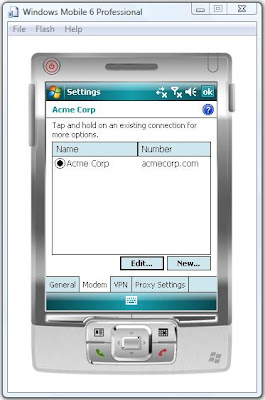
Our new connection added to our custom network.
A few points to make with the above code. The DestId must be the same Id provided when creating the network. The CM_GPRSEntries is a little more complex than the network CSP.
UserName - if blank and the RequirePw is set, then the Connection Manager will ask for credentials when making a connection, otherwise authentication will fail unless anonymous access has been defined.
DnsAddr - only needs to be set if required by the APN. Set it to 0.0.0.0 to null the address. This is only ever used if SpecificNameServers is set to true (1 = true 0 = false). This is true for WinsAddr, AltDnsAddr.
IpHeaderCompression - should be set for PPP connections as it significantly improves performance. The property should be set to false only when connecting to a server that does not correctly negotiate IP header compression.
RequirePw - as mentioned before, the system should prompt for a user/password/domain name before dialing the phone. If set to true, the system will prompt if no password or user name is provisioned. If set to false, the system will not prompt for password before dialing even if no password or user name is provisioned.
RequireMsEncryptedPw - USE WITH CAUTION: determines whether MS encrypted password is required or not. If set, only the Microsoft secure password scheme, MSCHAP, can be used to authenticate the client with the server. This property prevents the PPP driver from using the PPP plain-text authentication protocol (PAP).
RequireDateEncryption - USE WITH CAUTION: determines whether data encryption is required or not. Note: MsEncryptedPassword property needs to be set in order for this property to have any effect. Also, MsEncryptedPassword is only supported by the Microsoft secure password scheme, MSCHAP (based on MD5), can be used to authenticate the client with the server. The PPP device driver disables plain PAP authentication. For interopability, set this flag to false.
GPRSInfoL2ProtocolType - PPP is the only supported protocol on Win CE devices.
GPRSInfoDataCompression - determines whether data compression for messages that are sent and received is enabled or not.
GPRSInfoHeaderCompression - header compression at message level is enabled or not. (2 = true 1 = false).
GPRSInfoAccessPointName - this is the name/IP of the APN.
Notice I have used the ConfigurationManager.ProcessConfiguration method to provision the XML which is only available on CF 2.0 and later frameworks. You have to platform invoke DMProcessConfigXML on pre CF 2.0.
In the next part, I will show how to add a proxy server to this connection.
UPDATE: As I mentioned above, I was going to show in the next post how to add a proxy connection. I've done one better, I've created a managed Configuration Service Provider API. I've written an article that has recently been published on MSDN which you can view here: http://msdn.microsoft.com/en-us/library/dd296760.aspx .
The API source code with an example can be downloaded from the MSDN Code Gallery here: http://code.msdn.microsoft.com/Project/Download/FileDownload.aspx?ProjectName=CSPWM&DownloadId=3943.
I hope you find it useful. In a future post, I'll build on this managed CSP with a proxy managed CSP!
I'd like to write an article on how to create a network and add a connection to a network using the CSP's Configuration Server Providers available to us under Windows CE.
First of all we use the CM_Networks CSP to create our custom network that we will use when connecting to our network. Which looks like this:
So it is fairly simple as compared to other CSPs. I have written a couple of articles about CSPs in the past here.
What is a network in the Windows Mobile space? a network is a bucket used to group certain connections, such as VPN, GPRS, 3G, proxy, GSM etc It is what your application should use when connecting to your remote network typically in LOB - Line of Business apps you'd use some form of APN - Access Point Name. You can view a list of connections on your device by navigating to Settings\Connections\Connections.

Connections screen
Navigating to the Advanced tab allows you to view or select different networks.

Advanced connections screen
Tapping select networks allows you to add, edit, delete or change connections.

Network management
Our objective is to add our own network and a private APN to this network. We can then select this network when connecting to our APN using the Connection Manager built into phone devices.
The first thing we need is the Microsoft.WindowsMobile.dll and the Microsoft.WindowsMobile.Configuration.dll both found from the WM5 or WM6 SDKs. Note: if you are targeting pre WM5 then you will need to use P/Invoke - I will talk about this later.
To create out network so that we can add connections, we need to call the CM_Networks CSP as mentioned earlier. The interface for CSPs is XML.
In the following code example we create a network named Acme Corp. I decided to use the XmlTextWriter class here but could have done this just by loading the XML into DOM using the XmlDocument class. The XML looks like the following:
<?xml version="1.0" encoding="utf-16"?>The code to produce this XML and to provision this XML is as follows:
<wap-provisioningdoc>
<characteristic type="CM_Networks">
<characteristic type="Acme Corp">
<parm name="DestId" value="{8b06c75c-d628-4b58-8fcd-43af276755fc}" />
</characteristic>
</characteristic>
</wap-provisioningdoc>
StringBuilder sb = null;
StringWriter sw = null;
XmlTextWriter xmlWriter = null;
try
{
  sb = new StringBuilder();
  sw = new StringWriter(sb);
  xmlWriter = new XmlTextWriter(sw);
  xmlWriter.WriteStartDocument();
  xmlWriter.WriteStartElement("wap-provisioningdoc");
  xmlWriter.WriteStartElement("characteristic");
  xmlWriter.WriteStartAttribute("type");
  xmlWriter.WriteString("CM_Networks");
  xmlWriter.WriteEndAttribute();
  xmlWriter.WriteStartElement("characteristic");
  xmlWriter.WriteStartAttribute("type");
  xmlWriter.WriteString("Acme Corp");
  xmlWriter.WriteEndAttribute(); //type
  xmlWriter.WriteStartElement("parm");
  xmlWriter.WriteStartAttribute("name");
  xmlWriter.WriteString("DestId");
  xmlWriter.WriteEndAttribute(); //name
  xmlWriter.WriteStartAttribute("value");
  xmlWriter.WriteString("{8b06c75c-d628-4b58-8fcd-43af276755fc}");
  xmlWriter.WriteEndAttribute();
  xmlWriter.WriteEndElement(); //parm
  xmlWriter.WriteEndElement(); //characteristic
  xmlWriter.WriteEndElement(); //characteristic
  xmlWriter.WriteEndElement(); //wap-provisioningdoc
  xmlWriter.WriteEndDocument();
  var xmlDoc = new XmlDocument();
  xmlDoc.LoadXml(sb.ToString());
  ConfigurationManager.ProcessConfiguration(xmlDoc, false);
}
catch (Exception)
{
   //Do stuff...
   throw;
}
finally
{
   if (xmlWriter != null)
   {
       xmlWriter.Flush();
       xmlWriter.Close();
   }
}
Now if we take a look in Connections\Advanced\Select Networks screen, we will see the newly created network. Although at the moment we have just a blank network with no connections defined.

Our newly created network
Tapping edit will reveal no connections as yet...

Empty network
Our next job is to add a connection to make this network useful. We do this using the CM_GPRSEntries CSP. Documentation on this CSP can be found here. 3G UMTS/HSDPA will be used if available although the CSP is named GPRS this is a little mis-leading.
Again we use the trusty old XmlTextWriter to create our XML file in order to provision to our device. The XML looks like the following:
<?xml version="1.0" encoding="utf-16"?>The code to create this XML and provision the device looks like the following:
<wap-provisioningdoc>
<characteristic type="CM_GPRSEntries">
<characteristic type="Acme Corp">
<parm name="DestId" value="{8b06c75c-d628-4b58-8fcd-43af276755fc}" />
<parm name="UserName" value="un" />
<parm name="Password" value="pa" />
<parm name="DnsAddr" value="192.168.0.1" />
<parm name="Domain" value="ACME" />
<parm name="AltDnsAddr" value="192.168.0.2" />
<parm name="WinsAddr" value="" />
<parm name="AltWinsAddr" value="" />
<parm name="SpecificNameServers" value="0" />
<parm name="IpHeaderCompression" value="false" />
<parm name="RequirePw" value="1" />
<parm name="RequireMsEncryptedPw" value="false" />
<parm name="RequireDataEncryption" value="false" />
<characteristic type="DevSpecificCellular">
<parm name="BearerInfoValid" value="1" />
<parm name="GPRSInfoValid" value="1" />
<parm name="GPRSInfoProtocolType" value="2" />
<parm name="GPRSInfoL2ProtocolType" value="PPP" />
<parm name="GPRSInfoAccessPointName" value="acmecorp.com" />
<parm name="GPRSInfoAddress" value="" />
<parm name="GPRSInfoDataCompression" value="2" />
<parm name="GPRSInfoHeaderCompression" value="2" />
</characteristic>
</characteristic>
</characteristic>
</wap-provisioningdoc>
StringBuilder sb = null;
StringWriter sw = null;
XmlTextWriter xmlWriter = null;
try
{
  sb = new StringBuilder();
  sw = new StringWriter(sb);
  xmlWriter = new XmlTextWriter(sw);
  xmlWriter.WriteStartDocument();
  xmlWriter.WriteStartElement("wap-provisioningdoc");
  xmlWriter.WriteStartElement("characteristic");
  xmlWriter.WriteStartAttribute("type");
  xmlWriter.WriteString("CM_GPRSEntries");
  xmlWriter.WriteEndAttribute(); //type
  xmlWriter.WriteStartElement("characteristic");
  xmlWriter.WriteStartAttribute("type");
  //The name of the APN.
  xmlWriter.WriteString("Acme Corp");
  xmlWriter.WriteEndAttribute(); //type
  xmlWriter.WriteStartElement("parm");
  xmlWriter.WriteStartAttribute("name");
  xmlWriter.WriteString("DestId");
  xmlWriter.WriteEndAttribute(); //name
  xmlWriter.WriteStartAttribute("value");
  xmlWriter.WriteString("{8b06c75c-d628-4b58-8fcd-43af276755fc}");
  xmlWriter.WriteEndAttribute(); //value
  xmlWriter.WriteEndElement(); //parm
xmlWriter.WriteStartElement("parm");
xmlWriter.WriteStartAttribute("name");
xmlWriter.WriteString("UserName");
xmlWriter.WriteEndAttribute(); //name
xmlWriter.WriteStartAttribute("value");
//Username to authenticate.
xmlWriter.WriteString("un");
xmlWriter.WriteEndAttribute(); //value
xmlWriter.WriteEndElement(); //parm xmlWriter.WriteStartElement("parm");
xmlWriter.WriteStartAttribute("name");
xmlWriter.WriteString("Password");
xmlWriter.WriteEndAttribute(); //name
xmlWriter.WriteStartAttribute("value");
//Password to authenticate.
xmlWriter.WriteString("pa");
xmlWriter.WriteEndAttribute(); //value
xmlWriter.WriteEndElement(); //parm xmlWriter.WriteStartElement("parm");
xmlWriter.WriteStartAttribute("name");
xmlWriter.WriteString("DnsAddr");
xmlWriter.WriteEndAttribute(); //name
xmlWriter.WriteStartAttribute("value");
//DNS of the APN.
xmlWriter.WriteString("192.168.0.1");
xmlWriter.WriteEndAttribute(); //value
xmlWriter.WriteEndElement(); //parm xmlWriter.WriteStartElement("parm");
xmlWriter.WriteStartAttribute("name");
xmlWriter.WriteString("Domain");
xmlWriter.WriteEndAttribute(); //name
xmlWriter.WriteStartAttribute("value");
//Domain to use during authentication.
xmlWriter.WriteString("ACME");
xmlWriter.WriteEndAttribute(); //value
xmlWriter.WriteEndElement(); //parm xmlWriter.WriteStartElement("parm");
xmlWriter.WriteStartAttribute("name");
xmlWriter.WriteString("AltDnsAddr");
xmlWriter.WriteEndAttribute(); //name
xmlWriter.WriteStartAttribute("value");
//An alternate DNS.
xmlWriter.WriteString("192.168.0.2");
xmlWriter.WriteEndAttribute(); //value
xmlWriter.WriteEndElement(); //parm xmlWriter.WriteStartElement("parm");
xmlWriter.WriteStartAttribute("name");
xmlWriter.WriteString("WinsAddr");
xmlWriter.WriteEndAttribute(); //name
xmlWriter.WriteStartAttribute("value");
//The WINS server is ignored unless SpecificNameServers is set to true.
xmlWriter.WriteString("");
xmlWriter.WriteEndAttribute(); //value
xmlWriter.WriteEndElement(); //parm xmlWriter.WriteStartElement("parm");
xmlWriter.WriteStartAttribute("name");
xmlWriter.WriteString("AltWinsAddr");
xmlWriter.WriteEndAttribute(); //name
xmlWriter.WriteStartAttribute("value");
xmlWriter.WriteString("");
xmlWriter.WriteEndAttribute(); //value
xmlWriter.WriteEndElement(); //parm xmlWriter.WriteStartElement("parm");
xmlWriter.WriteStartAttribute("name");
xmlWriter.WriteString("SpecificNameServers");
xmlWriter.WriteEndAttribute(); //name
xmlWriter.WriteStartAttribute("value");
//1 = true, 0 = false
xmlWriter.WriteString("0");
xmlWriter.WriteEndAttribute(); //value
xmlWriter.WriteEndElement(); //parm xmlWriter.WriteStartElement("parm");
xmlWriter.WriteStartAttribute("name");
xmlWriter.WriteString("IpHeaderCompression");
xmlWriter.WriteEndAttribute(); //name
xmlWriter.WriteStartAttribute("value");
xmlWriter.WriteString("false");
xmlWriter.WriteEndAttribute(); //value
xmlWriter.WriteEndElement(); //parm xmlWriter.WriteStartElement("parm");
xmlWriter.WriteStartAttribute("name");
xmlWriter.WriteString("RequirePw");
xmlWriter.WriteEndAttribute(); //name
xmlWriter.WriteStartAttribute("value");
xmlWriter.WriteString("1"); //true, 0 = false
xmlWriter.WriteEndAttribute(); //value
xmlWriter.WriteEndElement(); //parm
xmlWriter.WriteStartElement("parm");
  xmlWriter.WriteStartAttribute("name");
  xmlWriter.WriteString("RequireMsEncryptedPw");
  xmlWriter.WriteEndAttribute(); //name
  xmlWriter.WriteStartAttribute("value");
  xmlWriter.WriteString("false");
  xmlWriter.WriteEndAttribute(); //value
  xmlWriter.WriteEndElement(); //parm
  xmlWriter.WriteStartElement("parm");
  xmlWriter.WriteStartAttribute("name");
  xmlWriter.WriteString("RequireDataEncryption");
  xmlWriter.WriteEndAttribute(); //name
  xmlWriter.WriteStartAttribute("value");
  xmlWriter.WriteString("false");
  xmlWriter.WriteEndAttribute(); //value
  xmlWriter.WriteEndElement(); //parm
xmlWriter.WriteStartElement("characteristic");
xmlWriter.WriteStartAttribute("type");
xmlWriter.WriteString("DevSpecificCellular");
xmlWriter.WriteEndAttribute(); //type xmlWriter.WriteStartElement("parm");
xmlWriter.WriteStartAttribute("name");
xmlWriter.WriteString("BearerInfoValid");
xmlWriter.WriteEndAttribute(); //name
xmlWriter.WriteStartAttribute("value");
xmlWriter.WriteString("1");
xmlWriter.WriteEndAttribute(); //value
xmlWriter.WriteEndElement(); //parm xmlWriter.WriteStartElement("parm");
xmlWriter.WriteStartAttribute("name");
xmlWriter.WriteString("GPRSInfoValid");
xmlWriter.WriteEndAttribute(); //name
xmlWriter.WriteStartAttribute("value");
xmlWriter.WriteString("1"); //true
xmlWriter.WriteEndAttribute(); //value
xmlWriter.WriteEndElement(); //parm xmlWriter.WriteStartElement("parm");
xmlWriter.WriteStartAttribute("name");
xmlWriter.WriteString("GPRSInfoProtocolType");
xmlWriter.WriteEndAttribute(); //name
xmlWriter.WriteStartAttribute("value");
xmlWriter.WriteString("2"); //CELLDEVCONFIG_GPRSPROTOCOL_IP
//See: http://msdn2.microsoft.com/en-us/library/ms835762.aspx
//for the CELLGPRSCONNECTIONINFO structure.
xmlWriter.WriteEndAttribute(); //value
xmlWriter.WriteEndElement(); //parm xmlWriter.WriteStartElement("parm");
xmlWriter.WriteStartAttribute("name");
xmlWriter.WriteString("GPRSInfoL2ProtocolType");
xmlWriter.WriteEndAttribute(); //name
xmlWriter.WriteStartAttribute("value");
xmlWriter.WriteString("PPP");
xmlWriter.WriteEndAttribute(); //value
xmlWriter.WriteEndElement(); //parm xmlWriter.WriteStartElement("parm");
xmlWriter.WriteStartAttribute("name");
xmlWriter.WriteString("GPRSInfoAccessPointName");
xmlWriter.WriteEndAttribute(); //name
xmlWriter.WriteStartAttribute("value");
xmlWriter.WriteString("acmecorp.com");
xmlWriter.WriteEndAttribute(); //value
xmlWriter.WriteEndElement(); //parm xmlWriter.WriteStartElement("parm");
xmlWriter.WriteStartAttribute("name");
xmlWriter.WriteString("GPRSInfoAddress");
xmlWriter.WriteEndAttribute(); //name
xmlWriter.WriteStartAttribute("value");
xmlWriter.WriteString("");
xmlWriter.WriteEndAttribute(); //value
xmlWriter.WriteEndElement(); //parm xmlWriter.WriteStartElement("parm");
xmlWriter.WriteStartAttribute("name");
xmlWriter.WriteString("GPRSInfoDataCompression");
xmlWriter.WriteEndAttribute(); //name
xmlWriter.WriteStartAttribute("value");
//Data compression.
xmlWriter.WriteString("2"); //true, 1 = false
xmlWriter.WriteEndAttribute(); //value
xmlWriter.WriteEndElement(); //parm
  xmlWriter.WriteStartElement("parm");
  xmlWriter.WriteStartAttribute("name");
  xmlWriter.WriteString("GPRSInfoHeaderCompression");
  xmlWriter.WriteEndAttribute(); //name
  xmlWriter.WriteStartAttribute("value");
  xmlWriter.WriteString("2"); //true, 1 = false
  xmlWriter.WriteEndAttribute(); //value
  xmlWriter.WriteEndElement(); //parm
xmlWriter.WriteEndElement(); //characteristic
  xmlWriter.WriteEndElement(); //characteristic
  xmlWriter.WriteEndElement(); //characteristic
  xmlWriter.WriteEndElement(); //wap-provisioningdoc
After we run this code, if we go back to the network, we will see a new connection added to this network:
XmlDocument xmlDoc = new XmlDocument();
  xmlDoc.LoadXml(sb.ToString());
  ConfigurationManager.ProcessConfiguration(xmlDoc, false);
}
catch (Exception)
{
  throw;
}
finally
{
  if (xmlWriter != null)
  {
     xmlWriter.Flush();
     xmlWriter.Close();
  }
}

Our new connection added to our custom network.
A few points to make with the above code. The DestId must be the same Id provided when creating the network. The CM_GPRSEntries is a little more complex than the network CSP.
UserName - if blank and the RequirePw is set, then the Connection Manager will ask for credentials when making a connection, otherwise authentication will fail unless anonymous access has been defined.
DnsAddr - only needs to be set if required by the APN. Set it to 0.0.0.0 to null the address. This is only ever used if SpecificNameServers is set to true (1 = true 0 = false). This is true for WinsAddr, AltDnsAddr.
IpHeaderCompression - should be set for PPP connections as it significantly improves performance. The property should be set to false only when connecting to a server that does not correctly negotiate IP header compression.
RequirePw - as mentioned before, the system should prompt for a user/password/domain name before dialing the phone. If set to true, the system will prompt if no password or user name is provisioned. If set to false, the system will not prompt for password before dialing even if no password or user name is provisioned.
RequireMsEncryptedPw - USE WITH CAUTION: determines whether MS encrypted password is required or not. If set, only the Microsoft secure password scheme, MSCHAP, can be used to authenticate the client with the server. This property prevents the PPP driver from using the PPP plain-text authentication protocol (PAP).
RequireDateEncryption - USE WITH CAUTION: determines whether data encryption is required or not. Note: MsEncryptedPassword property needs to be set in order for this property to have any effect. Also, MsEncryptedPassword is only supported by the Microsoft secure password scheme, MSCHAP (based on MD5), can be used to authenticate the client with the server. The PPP device driver disables plain PAP authentication. For interopability, set this flag to false.
GPRSInfoL2ProtocolType - PPP is the only supported protocol on Win CE devices.
GPRSInfoDataCompression - determines whether data compression for messages that are sent and received is enabled or not.
GPRSInfoHeaderCompression - header compression at message level is enabled or not. (2 = true 1 = false).
GPRSInfoAccessPointName - this is the name/IP of the APN.
Notice I have used the ConfigurationManager.ProcessConfiguration method to provision the XML which is only available on CF 2.0 and later frameworks. You have to platform invoke DMProcessConfigXML on pre CF 2.0.
In the next part, I will show how to add a proxy server to this connection.
UPDATE: As I mentioned above, I was going to show in the next post how to add a proxy connection. I've done one better, I've created a managed Configuration Service Provider API. I've written an article that has recently been published on MSDN which you can view here: http://msdn.microsoft.com/en-us/library/dd296760.aspx .
The API source code with an example can be downloaded from the MSDN Code Gallery here: http://code.msdn.microsoft.com/Project/Download/FileDownload.aspx?ProjectName=CSPWM&DownloadId=3943.
I hope you find it useful. In a future post, I'll build on this managed CSP with a proxy managed CSP!
Wednesday, August 06, 2008
Joining Edenbrook

I have recently decided to move on from my current (or shall I say previous) employer which was a hard decision to make. I have decided to join Edenbrook.
Edenbrook are a consultancy based in London that specialise in Microsoft and Oracle solutions. Edenbrook are accredited with the highest partnership status by Microsoft and Oracle, that is Microsoft Gold Partner and Oracle Certified Partner. They have been in the Sunday Times Tech Track 100 three times and once in the Profit Track 100 since 2004.
Edenbrook has a proven track record of working with many different sectors for FTSE 250 companies with extensive emphasis on integration with existing systems as well as development of new solutions.
Edenbrook now has a managed services arm which provides outsourcing from it's offices in Pune, India as well as support services.
Tuesday, August 05, 2008
Monday, August 04, 2008
Showing the phone programmatically on Windows Mobile
Another common feature people ask for is how to show the phone from your application. This can be done as follows:
System.Diagnostics.Process.Start(@"\Windows\cprog.exe", string.Empty);The above will work on CF 2.0 and later. Of course this will only work on phone edition/professional devices.
Saturday, August 02, 2008
Showing a list of contacts programmatically on Windows Mobile
A question that gets asked quite frequently in the communities, is "how do I show a list of contacts contained within the PIM on Windows Mobile devices programmatically".
Well the answer is very simple if running CF 2.0 or later simply write something like the following:
Of course the code above will use the Outlook Mobile application to display contacts on Windows Mobile. To write you're own UI you'd have to use the POOM API to populate you're own UI.
Well the answer is very simple if running CF 2.0 or later simply write something like the following:
System.Diagnostics.Process.Start("poutlook.exe", "contacts");So we start process poutlook and pass contacts as a parameter. If you're using pre-CF 2.0 then you'll have to P/invoke ShellExecuteEx Win32 API.Of course the code above will use the Outlook Mobile application to display contacts on Windows Mobile. To write you're own UI you'd have to use the POOM API to populate you're own UI.
Tuesday, July 29, 2008
LINQ - Level 100
I've been talking about LINQ recently and the more I learn, the more I write as I think it is a well cool technology that I like talking about :) But if you're starting out and not sure how to start using LINQ what do you do?
This post is level 100 so very high level and it is meant to give newcomers an overview on how to start with LINQ, ie what tools you need what version of Visual Studio, language versions supported platforms, what's supported on devices and finally some links to get started.
Visual Studio 2008
You will need to use the new language features only available in C# 3.0 and VB 9.0 which can be used with Visual Studio 2008. I have shown code examples in C# but the concepts are the same for VB.
So you'll need at least Visual Studio 2008 and target 3.5 of the framework.
Types of LINQ (all supported on the desktop)
Types of LINQ supported on the Compact Framework (v 3.5)
You can use SQL Metal to generate the .dbml file for LINQ to SQL - but this will only work for SQL Compact on the desktop not device.
Some good resources (not device specific though) can be found at:
http://weblogs.asp.net/scottgu/archive/2007/05/19/using-linq-to-sql-part-1.aspx
LINQ in Action: http://linqinaction.net/
Mike Taulty: http://mtaulty.com/CommunityServer/blogs/mike_taultys_blog/archive/category/1001.aspx
This post is level 100 so very high level and it is meant to give newcomers an overview on how to start with LINQ, ie what tools you need what version of Visual Studio, language versions supported platforms, what's supported on devices and finally some links to get started.
Visual Studio 2008
You will need to use the new language features only available in C# 3.0 and VB 9.0 which can be used with Visual Studio 2008. I have shown code examples in C# but the concepts are the same for VB.
So you'll need at least Visual Studio 2008 and target 3.5 of the framework.
Types of LINQ (all supported on the desktop)
- LINQ to SQL (old name DLINQ)
- LINQ to XML
- LINQ to DataSets
- LINQ to Entities (sometimes called LINQ to ADO.NET)
- LINQ to Objects
Types of LINQ supported on the Compact Framework (v 3.5)
- LINQ to DataSets
- LINQ to Xml
- LINQ to Objects
You can use SQL Metal to generate the .dbml file for LINQ to SQL - but this will only work for SQL Compact on the desktop not device.
Some good resources (not device specific though) can be found at:
http://weblogs.asp.net/scottgu/archive/2007/05/19/using-linq-to-sql-part-1.aspx
LINQ in Action: http://linqinaction.net/
Mike Taulty: http://mtaulty.com/CommunityServer/blogs/mike_taultys_blog/archive/category/1001.aspx
Free Vista SP1 Support until 18th March 2009
Microsoft has announced free technical support on Vista SP1 until 18th March 2009. Telephone support is available worldwide. Some countries also offer chat and email support.
To find out more see here: http://support.microsoft.com/common/international.aspx?rdpath=1&prid=11274&gprid=500921
To find out more see here: http://support.microsoft.com/common/international.aspx?rdpath=1&prid=11274&gprid=500921
Derive from Exception not ApplicationException
A friend of mine Steve Gregson asked me the other day what exception class you should derive from when creating custom exceptions knowing that I would answer ApplicationException. I naturally told him ApplicationException, but I was wrong.
This post talks about this very issue with an excerpt from Jeffrey Richter and the reason...TargetInvocationException...or at least one of them. The original framework design was that applications would derive from ApplicationException and the CLR would derive from class Exception. This would then enable some code higher up the chain to distinguish the difference between an application exception over a CLR exception and handle it accordingly. But as a lot of framework classes didn't follow the ApplicationException pattern it renders this class useless as it is not possible to know where the exception came from (CLR or app) higher up the chain.
Best practices for handling exceptions can be found here.
In fact Krzysztof Cwalina's blog above co-authored this book:
I happen to own the above book and I just checked, page 197 where Jeffrey talks about not to use ApplicationException class. I highly recommend the above book by the way.
So there you have it, just forget ApplicationException ever existed...
This post talks about this very issue with an excerpt from Jeffrey Richter and the reason...TargetInvocationException...or at least one of them. The original framework design was that applications would derive from ApplicationException and the CLR would derive from class Exception. This would then enable some code higher up the chain to distinguish the difference between an application exception over a CLR exception and handle it accordingly. But as a lot of framework classes didn't follow the ApplicationException pattern it renders this class useless as it is not possible to know where the exception came from (CLR or app) higher up the chain.
Best practices for handling exceptions can be found here.
In fact Krzysztof Cwalina's blog above co-authored this book:
I happen to own the above book and I just checked, page 197 where Jeffrey talks about not to use ApplicationException class. I highly recommend the above book by the way.
So there you have it, just forget ApplicationException ever existed...
Monday, July 28, 2008
LINQ to Objects on the Compact Framework - Part 2
I wrote an article recently about LINQ to Objects on the Compact Framework here.
This post goes into a bit more detail.
There are many examples out there in the communities in how to do simple queries, stuff like sorting filtering, grouping selecting new anonymous types etc. But what if we already have a relational schema that represents a one-to-one or a one-to-many mapping class hierarchy to our database schema which contains multiple records and we want to do some processing at a very low level in the hierarchy. Consider the schema defined below:

I've modelled this using SQL Server but I could have used quite a few different tools to do this.
The schema is quite nice to work with and it would be nice to have an object model that represented this in code.
In Part 1 we modeled the Customer table although notice in the above schema we have two new columns: HomePhone and MobilePhone so we will add these to our object model as follows:
Of course now we need both the Orders class the the Products class. They look like the following:
So now we need some data. Normally you'd write some SQL to populate your object model as I mentioned in previous posts sadly LINQ to SQL and LINQ to ADO.NET/Entitys are not supported. So this hard work still has to be hand cranked. Although there is an ORM toolset available for the Compact Framework. You can find this here. I'd be interested in hearing from anyone their experiences of this toolset as I haven't personally tried it, yet.
As I don't have a database, I'm just going to create an object model by hand with some fictitious data that I just made up. So this code looks as follows:
Suppose now that we wanted a list of customers who have placed an order. I could code somthing like the following:
You could from the var above do this:
So far we have seen very simple queries. Now what if we wanted to do something more complex like find out which customers have placed orders totaling more than £100.00.
We use a new feature of C# 3.0 called lambda expressions to do this which makes our code very short and easy to read. Lambda expressions are much like anonymous methods as introduced with C# 2.0. There are plenty of resources out in the community that talk about lambda expressions in depth. In fact whenever you use LINQ - for example in the simple examples above the compiler will be creating lambda expression calculations in the background, seemlessly. Of course you can explicitly use them yourself to add extra power.
The code to achieve the above could look like the following:
How cool is that, in just 3 lines of code - that is the impressive thing here.
That's it for this post, but in my next post Part 3 I talk about some more things you can do with LINQ.
This post goes into a bit more detail.
There are many examples out there in the communities in how to do simple queries, stuff like sorting filtering, grouping selecting new anonymous types etc. But what if we already have a relational schema that represents a one-to-one or a one-to-many mapping class hierarchy to our database schema which contains multiple records and we want to do some processing at a very low level in the hierarchy. Consider the schema defined below:

I've modelled this using SQL Server but I could have used quite a few different tools to do this.
The schema is quite nice to work with and it would be nice to have an object model that represented this in code.
In Part 1 we modeled the Customer table although notice in the above schema we have two new columns: HomePhone and MobilePhone so we will add these to our object model as follows:
public class CustomerInfo
{
    private List<OrderInfo> orders = null;
As you can see we now have the two additional properties added to support the additional columns and also we have an Orders property which gives us access to all orders for each customer.
public CustomerInfo()
{
orders = new List<OrderInfo>();
}
public int CustomerId
{
get;
set;
}
public string Name
{
get;
set;
}
public string AddressLine1
{
get;
set;
}
public string AddressLine2
{
get;
set;
}
public string AddressLine3
{
get;
set;
}
public string City
{
get; set;
}
public string County
{
get;
set;
}
public string PostalCode
{
get;
set;
}
public string Country
{
get;
set;
}
public string HomePhone
{
get;
set;
}
public string MobilePhone
{
get;
set;
}
public ListOrders
{
get
{
return orders;
}
set
{
orders = value;
}
}
}
Of course now we need both the Orders class the the Products class. They look like the following:
public class OrderInfoNotice from the above we have the Product property which gives us the product this order relates to. Now we need the product class:
{
public int OrderId
{
get; set;
}
public int CustomerId
{
get; set;
}
public int ProductId
{
get; set;
}
public int Quantity
{
get; set;
}
public ProductInfo Product
{
get; set;
}
}
public class ProductInfoThat's it in terms of our object model. Nothing too complex. If we wanted, we could mark each class as Serializable so that if we wanted to serialize the data into binary we could (binary serializer is not supported on the CF) this is not required for XML serialization however. I do want to show an example of serializing this too as it adds an element of coolness to this example of how powerful we can make LINQ.
{
public int ProductId
{
get;
set;
}
public string Description
{
get;
set;
}
public decimal Cost
{
get;
set;
}
}
So now we need some data. Normally you'd write some SQL to populate your object model as I mentioned in previous posts sadly LINQ to SQL and LINQ to ADO.NET/Entitys are not supported. So this hard work still has to be hand cranked. Although there is an ORM toolset available for the Compact Framework. You can find this here. I'd be interested in hearing from anyone their experiences of this toolset as I haven't personally tried it, yet.
As I don't have a database, I'm just going to create an object model by hand with some fictitious data that I just made up. So this code looks as follows:
List<CustomerInfo>customersSource = new List<CustomerInfo>So we have 2 orders for customer Joe (id 1) and no orders for any other customer.
{
new CustomerInfo
{
CustomerId = 1,
Name = "Joe",
City = "London",
Orders = new List()
{
new OrderInfo()
{
OrderId = 1,
CustomerId = 1,
ProductId = 1,
Quantity = 5,
Product = new ProductInfo()
{
ProductId = 1,
Cost = 23.34M,
Description = "Garden tiles"
}
},
new OrderInfo()
{
OrderId = 2,
CustomerId = 1,
ProductId = 2,
Quantity = 10,
Product = new ProductInfo()
{
ProductId = 2,
Cost = 56.12M,
Description = "Grass seed"
}
},
new OrderInfo()
{
OrderId = 3,
CustomerId = 1,
ProductId = 2,
Quantity = 1,
Product = new ProductInfo()
{
ProductId = 3,
Cost = 599.95M,
Description = "Table and chairs"
}
}
}
},
new CustomerInfo
{
CustomerId = 2,
Name = "Pete",
City = "Paris"
},
new CustomerInfo
{
CustomerId = 3,
Name = "John",
City = "New York"
},
new CustomerInfo
{
CustomerId = 4,
Name = "Pete",
City = "London"
},
new CustomerInfo
{
CustomerId = 5,
Name = "Paul",
City = "Dublin"
},
new CustomerInfo
{
CustomerId = 6,
Name = "Steve",
City = "Exeter"
},
new CustomerInfo
{
CustomerId = 7,
Name = "Clare",
City = "Norwich"
}
};
Suppose now that we wanted a list of customers who have placed an order. I could code somthing like the following:
var customersWithOrders = from c in customersSource
      where c.Orders.Count > 0
      c.Name;
The output of above looks like:
foreach (string s in customersWithOrders)
{
   Debug.WriteLine(string.Format("Customer {0} has an order", s));
}
Customer Joe has an orderOrders will always be non-null because we initialize a collection of orders in the CustomerInfo class. We could have coded the above using the new feature of C# 3.0 which is anonymous types. An example of using anonymous types is as follows:
var customersWithOrders = from c in customersSourceWe could extend the anonymous type to include more information such as which city the customer is from:
where c.Orders.Count > 0
select new
{
c.Name
};
foreach (var s in customersWithOrders)
{
Debug.WriteLine(string.Format("Customer {0} has an order", s.Name));
}
var customersWithOrders = from c in customersSource
               where c.Orders.Count > 0
               select new
               {
                   c.Name,
                   c.City
               };
foreach (var s in customersWithOrders)We could also just select the customer like so:
{
Debug.WriteLine(string.Format("Customer {0} from city {1} has an order",
s.Name, s.City));
}
var customersWithOrders =  from c in customersSource
            where c.Orders.Count > 0
            select c;
foreach (var s in customersWithOrders)The type is in fact a CustomerInfo object. It is implicitly inferred at runtime. The output of the above looks like the following:
{
Debug.WriteLine(string.Format
("Customer {0} from city {1} country {2} has an order",
s.Name, s.City, s.Country));
}
Customer Joe from city London country has an orderNotice how the country is blank, why is this? Go back to where we create our object model - we never intialized the Country property. In fact, as we are using auto-implemented properties the property will in fact be null. Cleverly though the code doesn't blow up because the above is in fact a bug.
You could from the var above do this:
CustomerInfo cust = customersWithOrders.First();Which would give us our first CustomerInfo object found in the collection. The var is in this case an IEnumerable and First is an extension method on IEnumerable. There are many extension methods on IEnumerable which I will show examples of how to use lambda expressions in queries.
So far we have seen very simple queries. Now what if we wanted to do something more complex like find out which customers have placed orders totaling more than £100.00.
We use a new feature of C# 3.0 called lambda expressions to do this which makes our code very short and easy to read. Lambda expressions are much like anonymous methods as introduced with C# 2.0. There are plenty of resources out in the community that talk about lambda expressions in depth. In fact whenever you use LINQ - for example in the simple examples above the compiler will be creating lambda expression calculations in the background, seemlessly. Of course you can explicitly use them yourself to add extra power.
The code to achieve the above could look like the following:
var customersWithOrdersOver100 = from c in customersSource
                 where c.Orders.Sum(o => o.Product.Cost) > 100
                 select c.Name;
foreach (var s in customersWithOrdersOver100)The output of the above looks like:
{
Debug.WriteLine(string.Format("Customer {0} has an order over £100.00", s));
}
Customer Joe has an order over £100.00Here we have used extension method Sum on the IEnumerable interface then using lambda expression we are able to execute the query.
How cool is that, in just 3 lines of code - that is the impressive thing here.
That's it for this post, but in my next post Part 3 I talk about some more things you can do with LINQ.
Tuesday, July 22, 2008
LINQ to Objects on the Compact Framework - Part 1
I wrote an article recently about writing comparer classes to sort data on the CF because LINQ to SQL is not supported on the Compact Framework. I did forget to mention LINQ to Objects which *is* supported on the Compact Framework and of course adds so much more power than writing a comparer class.
So just as in the previous article we have a simple customer object:
Of course LINQ is a little bit more powerful than traditional IComparer code in that we can filter data without having to write much code or go back to the database - which is quite powerful.
What if we wanted to show customers from London. We could write a query as:
We can also do wildcard filtering such as show me customers that name begins with 'J':
Typically though, that list would normally have been returned from a data layer in your application and instead of going back to the database to filter, sort etc, you'd use LINQ instead which will improve performance no-end. This is also quite powerful if you are retrieving your data from a remote server, you wouldn't want to do another round trip to filter or sort results.
The really exciting thing about all this code is that it will run against your existing custo strongly typed collections and that is very powerful.
UPDATE: See part 2 of this series here.
So just as in the previous article we have a simple customer object:
public class CustomerInfoSo instead of writing all that comparer logic, instead we can use LINQ to Objects as follows:
{
public int CustomerId
{
get;
set;
}
public string Name
{
get;
set;
}
public string AddressLine1
{
get;
set;
}
public string AddressLine2
{
get;
set;
}
public string AddressLine3
{
get;
set;
}
public string City
{
get;
set;
}
public string County
{
get;
set;
}
public string PostalCode
{
get;
set;
}
public string Country
{
get;
set;
}
}
[MTAThread]Output of the above looks like the following:
static void Main()
{
List<CustomerInfo> customersSource = new List<CustomerInfo>
{
new CustomerInfo {CustomerId = 1, Name = "Joe", City = "London"},
new CustomerInfo {CustomerId = 2, Name = "Pete", City = "Paris"},
new CustomerInfo {CustomerId = 3, Name = "John", City = "New York"},
new CustomerInfo {CustomerId = 4, Name = "Pete", City = "London"},
new CustomerInfo {CustomerId = 5, Name = "Paul", City = "Dublin"},
new CustomerInfo {CustomerId = 6, Name = "Steve", City = "Exeter"},
new CustomerInfo {CustomerId = 7, Name = "Clare", City = "Norwich"}
};
List<CustomerInfo> customersAscending =
(from c in customersSource
orderby c.City ascending
select c).ToList();
List<CustomerInfo> customersDescending =
(from c in customersSource
orderby c.City descending
select c).ToList();
Debug.WriteLine("Before sort");
DisplayCollection(customersSource);
Debug.WriteLine("");
Debug.WriteLine("After sort - Ascending");
DisplayCollection(customersAscending);
Debug.WriteLine("");
Debug.WriteLine("After sort - Descending");
DisplayCollection(customersDescending);
}
public static void DisplayCollection(List<CustomerInfo> customers)
{
foreach (CustomerInfo customer in customers)
{
Debug.WriteLine(string.Format("Name: {0}, City: {1}",
customer.Name, customer.City));
}
}
Before sort
Name: Joe, City: London
Name: Pete, City: Paris
Name: John, City: New York
Name: Pete, City: London
Name: Paul, City: Dublin
Name: Steve, City: Exeter
Name: Clare, City: Norwich
After sort - Ascending
Name: Paul, City: Dublin
Name: Steve, City: Exeter
Name: Joe, City: London
Name: Pete, City: London
Name: John, City: New York
Name: Clare, City: Norwich
Name: Pete, City: Paris
After sort - DescendingSo exactly the same results as both the IComparer and LINQ to SQL examples.
Name: Pete, City: Paris
Name: Clare, City: Norwich
Name: John, City: New York
Name: Joe, City: London
Name: Pete, City: London
Name: Steve, City: Exeter
Name: Paul, City: Dublin
Of course LINQ is a little bit more powerful than traditional IComparer code in that we can filter data without having to write much code or go back to the database - which is quite powerful.
What if we wanted to show customers from London. We could write a query as:
List<CustomerInfo> customersFromLondon =The output of the above is as follows:
(from c in customersSource
where c.City == "London"
select c).ToList();
Debug.WriteLine(string.Format("Customers from london: {0} customers
found", customersFromLondon.Count.ToString()));
DisplayCollection(customersFromLondon);
Customers from london: 2 customers foundBearing in mind these examples are only 1 dimensional objects, you can see the power when we have related objects. I will show some more complex examples in another post.
Name: Joe, City: London
Name: Pete, City: London
We can also do wildcard filtering such as show me customers that name begins with 'J':
The output of this is as follows:
List<CustomerInfo> customersNameStartsWithj =
                (from c in customersSource
                where c.Name.StartsWith("J")
                select c).ToList();
Debug.WriteLine(string.Format("Customer that name begins with the letter 'J': {0}
             customers found", customersNameStartsWithj.Count.ToString()));
DisplayCollection(customersNameStartsWithj);
Customer that name begins with the letter 'J': 2 customers foundWhich gives us two results as with have a John and a Joe in our list of data.
Name: Joe, City: London
Name: John, City: New York
Typically though, that list would normally have been returned from a data layer in your application and instead of going back to the database to filter, sort etc, you'd use LINQ instead which will improve performance no-end. This is also quite powerful if you are retrieving your data from a remote server, you wouldn't want to do another round trip to filter or sort results.
The really exciting thing about all this code is that it will run against your existing custo strongly typed collections and that is very powerful.
UPDATE: See part 2 of this series here.
Sunday, July 20, 2008
Building my Windows Vista Ultimate machine
***Not related to mobility or in fact anything else technical but I'd thought I'd post my experience here for any hardware geek readers out there! :)
2. Ugly: When the last component arrived from ebuyer the Coolermaster Elite 330 with the processor I was finally ready to build this machine. After several hours of putting it all together it failed to boot, just wouldn't turn on. I figured it might be a lack of power because the board is a bit of a beast. So I hooked up the additional 2x4 12v power connector in hope the board will have enough power from the PSU. And it turned on! but it just kept on rebooting. You could hear the HDD kick in, fans etc and before any output was displayed on the screen it would reboot as if it was in an endless loop.
After a bit of diagnostics, I found out there was a CMOS checksum error, so I decided to try and short (reset) the CMOS to see if that fixed the problem. It didn't, sadly. The motherboard was then sent back to the supplier for repair as I bought this motherboard more than 6 months earlier I didn't get a new one. I just hadn't had the time to built it.
The fixed motherboard arrived while I was away around 2 weeks later so I was quite excited that I might have a working board and moments away from a running system as these days building PC's is much easier than they used to be. So lets start again!

The board waiting to be unpacked.

It's a very nice looking board.
1. In the picture above, I've added the CPU and the memory (memory in dual mode as the board supports it). The stock fan was very difficult to install. Today these fans come with these springy type mounts that click into place. They no longer just stick onto of the CPU as they need very tight contact with the CPU to disperse as much heat as possible - multi-core CPUs run very hot. Getting all mounts through the motherboard was quite a task! You also need some conducting lube to help with heat flow.

The case with the side off, ready for the board to be inserted
The case comes with a 120mm stock fan to draw heat from the CPU. It doesn't have any BIOS regulator as it doesn't connect to the motherboard so there is no way to control the speed of it. This is unlike the CPU fan. All we have to do is hook it up to one of the power cables.

The 120mm fan extracing heat from the CPU and the north bridge
We do not have to install the PSU as it comes pre-installed.
2. Before we insert the board we will need to install the HDD so it makes it easier to get it in before we install the motherboard.
This case (Coolermaster Elite 330) contains the quick release drive sockets so we do not have to use a screwdriver - this feature I really liked. The case has another similar features for expansion cards. But to be honest, I used screws in addition to using the quick release gadget in the case as it didn't seem to secure the cards well enough in place for my likeing.

Samsung Spinpoint 500Gb HD501LJ

Hard drive installed
3. Now its time to install the CD ROM drive. Before we do this we need to prepare a bay for the drive to be installed.

The front of the case and the blank removed

The drive inserted - HP 1040d
The drive will not be flush against the case here, it will be flush againt the front of the case which is why it's sticking out a bit.
4. Now we need to hook up the IDE and power cables to the drive as it's an IDE drive.


5. Now we can install the motherboard into the case.

Board inserted
Now we have the board inserted. The GA-P35-DQ6 is an ATX board so just fits without the hard disk drive touching any part of the board.
6. Now its time to install the graphics card.

NVIDIA GeForce 8500 (512mb)
This graphics won't run a games like Crysis or COD4 on full graphics but I didn't build it for gaming, my xbox is for gaming.

Graphics installed into PCI-E x16 slot also the SATA HDD hooked up to the board
The case would support a much larger card such as the 8800 series without problems.
7. Now install the wireless NIC card.

Netgear WG311T

NIC card installed into the motherboard
8. Now we need to put the front of the case on.

9. We now need to install the external SATA blanking plate into the case and hook it up to the board. This enables us to plug in external HDD drives without somesort of caddy case.

The plate to install

The plate installed into the board
10. We will need to install additional USB ports. I do not have any photos of doing this but it's a simple case of installing a plate and screwing it into place and hooking it up to the motherboard.
11. There are a couple of finishing touches required to complete this build. Hooking up the USB the headphone and MIC ports available on the front of the case to the board. Note in the picture below, we have one spare 2.5" bay. This can either be a floppy drive, or a compact flash multiple support card reader which I will probebly buy as this feature would be very useful.

12. Hook up the monitor to the graphics card (DVI support).

The card also supports VGA and S-Video
You can see in the above picture the additional USB ports we installed. 12 in total!

The DVI cable in the back of the monitor
13. Bluetooth support. I will use my bluetooth card - a gift from Microsoft :) This is a simple case of plugging it into one of the spare USB ports.

14. Installing the webcam. Again this is a simple case of plugging it into a spare USB port.

Microsoft LifeCam 6000
And that is it. Finished. All that is required now is installation of all the software!

The finished article

Samsung SyncMaster 2032BW (20" LCD)

A couple of points to make. 2 GB of RAM is not enough. Vista sits idle using around 50% load on 2GB so as soon as you start hammering it, remote desktop sessions, Visual Studio etc the memory usage increases upto around 70% which is when Vista becomes a little unstable. I have ordered some more memory to cope with this.
The board supports dual memory too which helps on throughput. I don't recommend the KeySonic wireless 2.4 Ghz keyboard as it seems to disconnect on inactivity which then requires extra key presses to "wake it up".
The next machine I am building is a Windows Server 2008 box, I will post my experience of that here!
I decided recently to build a Windows Vista machine to use on my network LAN at home and I thought I'd share my experiences here. This should have been a fairly simple task but turned out to be a bit of a nightmare but I finally got through it..... in the end.
The spec of this machine is as follows:
Motherboard: Gigabyte GA-P35-DQ6 (New Intel P35 chipset)
Processor: Intel Core 2 Duo E8200 2.66GHz (45nm) (not overclocked, not yet anyway)
Memory: Corsair 2GB DDR2 800 MHz/PC2-6400 XMS2 Non-ECC
HDD: Samsung Spinpoint 500GB
CD/DVD Drive: HP 1040d
CD/DVD Drive: HP 1040d
Case: Coolermaster Elite 330 with Coolermaster eXtreme Power 460w PSU
Monitor: Samsung SyncMaster 2032BW (20" LCD)
Wireless: Netgear WG311T 108mbps Wireless PCI
Graphics: NVIDIA GeForce 8500 (512mb)
Sound: On board 8 channel (not bad at all for on-board)
Keyboard: KeySonic 2.4Ghz Wireless Compact Keyboard with Integrated Touchpad
Mouse: Acme laser something....need to get a decent mouse.
Web cam: Microsoft LifeCam 6000
Web cam: Microsoft LifeCam 6000
Media Centre Support: Microsoft OEM Media Centre Remote Control (for controlling Media Centrer Extender - XBox 360)
OS: Windows Vista Ultimate 64-bit SP1
The good the bad and the ugly:
1. Ugly: The first thing was to check the monitor didn't have any dead pixels. So I simply hooked this upto my ancient laptop, luckily the ancient laptop has a VGA port and the cool Samsung supports VGA! Now did the monitor have any dead pixels,Guess what, it did. This is unusal for Samsung, they have a zero dead pixel policy even though PC World told me otherwise! Having said this PC world replaced the deal pixel monitor with no problems.
2. Ugly: When the last component arrived from ebuyer the Coolermaster Elite 330 with the processor I was finally ready to build this machine. After several hours of putting it all together it failed to boot, just wouldn't turn on. I figured it might be a lack of power because the board is a bit of a beast. So I hooked up the additional 2x4 12v power connector in hope the board will have enough power from the PSU. And it turned on! but it just kept on rebooting. You could hear the HDD kick in, fans etc and before any output was displayed on the screen it would reboot as if it was in an endless loop.
After a bit of diagnostics, I found out there was a CMOS checksum error, so I decided to try and short (reset) the CMOS to see if that fixed the problem. It didn't, sadly. The motherboard was then sent back to the supplier for repair as I bought this motherboard more than 6 months earlier I didn't get a new one. I just hadn't had the time to built it.
The fixed motherboard arrived while I was away around 2 weeks later so I was quite excited that I might have a working board and moments away from a running system as these days building PC's is much easier than they used to be. So lets start again!

The board waiting to be unpacked.

It's a very nice looking board.
1. In the picture above, I've added the CPU and the memory (memory in dual mode as the board supports it). The stock fan was very difficult to install. Today these fans come with these springy type mounts that click into place. They no longer just stick onto of the CPU as they need very tight contact with the CPU to disperse as much heat as possible - multi-core CPUs run very hot. Getting all mounts through the motherboard was quite a task! You also need some conducting lube to help with heat flow.

The case with the side off, ready for the board to be inserted
The case comes with a 120mm stock fan to draw heat from the CPU. It doesn't have any BIOS regulator as it doesn't connect to the motherboard so there is no way to control the speed of it. This is unlike the CPU fan. All we have to do is hook it up to one of the power cables.

The 120mm fan extracing heat from the CPU and the north bridge
We do not have to install the PSU as it comes pre-installed.
2. Before we insert the board we will need to install the HDD so it makes it easier to get it in before we install the motherboard.
This case (Coolermaster Elite 330) contains the quick release drive sockets so we do not have to use a screwdriver - this feature I really liked. The case has another similar features for expansion cards. But to be honest, I used screws in addition to using the quick release gadget in the case as it didn't seem to secure the cards well enough in place for my likeing.

Samsung Spinpoint 500Gb HD501LJ

Hard drive installed
3. Now its time to install the CD ROM drive. Before we do this we need to prepare a bay for the drive to be installed.

The front of the case and the blank removed

The drive inserted - HP 1040d
The drive will not be flush against the case here, it will be flush againt the front of the case which is why it's sticking out a bit.
4. Now we need to hook up the IDE and power cables to the drive as it's an IDE drive.


5. Now we can install the motherboard into the case.

Board inserted
Now we have the board inserted. The GA-P35-DQ6 is an ATX board so just fits without the hard disk drive touching any part of the board.
6. Now its time to install the graphics card.

NVIDIA GeForce 8500 (512mb)
This graphics won't run a games like Crysis or COD4 on full graphics but I didn't build it for gaming, my xbox is for gaming.

Graphics installed into PCI-E x16 slot also the SATA HDD hooked up to the board
The case would support a much larger card such as the 8800 series without problems.
7. Now install the wireless NIC card.

Netgear WG311T

NIC card installed into the motherboard
8. Now we need to put the front of the case on.

9. We now need to install the external SATA blanking plate into the case and hook it up to the board. This enables us to plug in external HDD drives without somesort of caddy case.

The plate to install

The plate installed into the board
10. We will need to install additional USB ports. I do not have any photos of doing this but it's a simple case of installing a plate and screwing it into place and hooking it up to the motherboard.
11. There are a couple of finishing touches required to complete this build. Hooking up the USB the headphone and MIC ports available on the front of the case to the board. Note in the picture below, we have one spare 2.5" bay. This can either be a floppy drive, or a compact flash multiple support card reader which I will probebly buy as this feature would be very useful.

12. Hook up the monitor to the graphics card (DVI support).

The card also supports VGA and S-Video
You can see in the above picture the additional USB ports we installed. 12 in total!

The DVI cable in the back of the monitor
13. Bluetooth support. I will use my bluetooth card - a gift from Microsoft :) This is a simple case of plugging it into one of the spare USB ports.

14. Installing the webcam. Again this is a simple case of plugging it into a spare USB port.

Microsoft LifeCam 6000
And that is it. Finished. All that is required now is installation of all the software!

The finished article

Samsung SyncMaster 2032BW (20" LCD)

A couple of points to make. 2 GB of RAM is not enough. Vista sits idle using around 50% load on 2GB so as soon as you start hammering it, remote desktop sessions, Visual Studio etc the memory usage increases upto around 70% which is when Vista becomes a little unstable. I have ordered some more memory to cope with this.
The board supports dual memory too which helps on throughput. I don't recommend the KeySonic wireless 2.4 Ghz keyboard as it seems to disconnect on inactivity which then requires extra key presses to "wake it up".
The next machine I am building is a Windows Server 2008 box, I will post my experience of that here!
Friday, July 18, 2008
Opera Mobile 9.5 beta 1 for WM5/6

I just downloaded and installed the web browser available from Opera Software, Opera Mobile 9.5 beta 1 and I think it's a work of art!
It supports full screen browsing, panning, zooming and you can save pages to your device.
It has a nice UI too, completly custom designed.

Portrait mode
Double tapping the screen zooms in so you can read the text more clearly:

Zoomed in
You can simply touch and drag the screen with the stylus or finger you have TouchFLO style devices.
Notice how it groups HTML paragraphs for easier reading, neat.
Gesture features:

Toolbar features:

Note this is a beta product so there are some known issues however for the very short amount of time I have been using it it seems to be fairly stable.
A list of know issues are as follows:
Known issues
- ActiveX is disabled — Flash plugins and embedded video streaming do not work.
- Custom IME’s (like HTC’s IME) will be buggy at best, not working at worst.
- Not multilingual build — Only English is supported. Problems with other languages (and input methods) are not unexpected.
- Installation on memory cards may cause problems.
- Text wraps in overview mode.
- Main testing has been done on English HTC devices (Touch Diamond, Touch Pro, Touch, Touch Dual, Touch Cruise, TyTN and Wizard) and Samsung i900.
- We have got reports from some users that this build will disable the phones sounds/notifications.
Thursday, July 17, 2008
Implementing the gradient fade look and feel Windows Mobile
You will notice on Windows Mobile (and pre WM) many core applications, Outlook, excel etc use a horizontal fade from right to left and normally the system Control colour combined with white generally.
An example of this is as follows:

An example of an application I've written looks like the following:

The above is a custom owner drawn list with of course no items. Here is the code to achieve the gradient background effect:
The unmanaged declarations look like the following:
An example of this is as follows:

An example of an application I've written looks like the following:

The above is a custom owner drawn list with of course no items. Here is the code to achieve the gradient background effect:
gOffScreen.FillRectangle(
     new SolidBrush(Color.White),
     0, 0, Convert.ToInt32(20 * grfx.DpiY / DESIGNPOINTSPERINCH), Height);
Rectangle rc = this.ClientRectangle;
rc.X = Convert.ToInt32(20 * grfx.DpiY / DESIGNPOINTSPERINCH);
rc.Width = Convert.ToInt32(rc.Width - 20 * grfx.DpiY / DESIGNPOINTSPERINCH);

NativeMethods.TRIVERTEX[] tva = new NativeMethods.TRIVERTEX[2];
tva[0] = new NativeMethods.TRIVERTEX(rc.X, rc.Y, Color.White);
tva[1] = new NativeMethods.TRIVERTEX(rc.Right,
          rc.Bottom, SystemColors.Control);
NativeMethods.GRADIENT_RECT[] gra = new NativeMethods.GRADIENT_RECT[]
{
   new NativeMethods.GRADIENT_RECT(0, 1)
};
//Get the hDC from the Graphics object.
IntPtr hdc = gOffScreen.GetHdc();
//P/Invoke to GradientFill.
NativeMethods.GradientFill(
   hdc,
   tva,
   (uint)tva.Length,
   gra,
   (uint)gra.Length,
   (uint)NativeMethods.GRADIENT_FILL_RECT_H);
//Release the hDC from the Graphics object.Where grfx is an instance of the Graphics object for this drawing surface and DESIGNPOINTSPERINCH is the design time DPI - normally 92. And the gOffScreen is a bitmap as we are using double buffering.
gOffScreen.ReleaseHdc(hdc);
The unmanaged declarations look like the following:
public const int GRADIENT_FILL_RECT_H = 0x00000000;
public const int GRADIENT_FILL_RECT_V = 0x00000001;
public struct GRADIENT_RECT
{
 public uint LowerRight;
 public uint UpperLeft;
 public GRADIENT_RECT(uint ul, uint lr);
}
[DllImport("coredll.dll", SetLastError = true,
EntryPoint = "GradientFill")]
public extern static bool GradientFill(IntPtr hdc,
                                     TRIVERTEX[] pVertex,
                                     uint dwNumVertex,
                                     GRADIENT_RECT[] pMesh,
                                     uint dwNumMesh,
                                     uint dwMode);
There is an MSDN article for this subject here: http://msdn.microsoft.com/en-us/library/ms229655(VS.80).aspx
Wednesday, July 09, 2008
Students - Imagine Cup 2009 is now open!

Now open for registration.
http://imaginecup.com/Default.aspx
To learn more about the imagine cup see here.
Locking Keyboard and Screen on Windows Mobile
There was a question in the community today regarding locking the keyboard and screen. I thought this was a good question so decided to write an article about how to do it.
There is a very simple solution to this problem so long as the device supports locking the device, which is on most WM5 and later devices. This code should work on CE devices also. Simply P/Invoke the keybd_event procedure passing hex 0x85.
For a list of key codes see here: http://msdn.microsoft.com/en-us/library/bb431750.aspx
So I have knocked up a very simple application with one button which locks the device:

Click to show a larger image
When we click the Lock button you'll notice the menubar soft input 1 changes to read Unlock and the device is completely inaccessible, tapping even the start menu will not work apart from soft input 1:

Click to show a larger image
Clicking Unlock shows this screen:

Click to show a larger image
Of course clicking Unlock in the middle of the screen returns to you're app.
This approach can be used for many different features, check out the list of codes above. A simple way of achieving many features of the device.
The code looks like the following:
There is a very simple solution to this problem so long as the device supports locking the device, which is on most WM5 and later devices. This code should work on CE devices also. Simply P/Invoke the keybd_event procedure passing hex 0x85.
For a list of key codes see here: http://msdn.microsoft.com/en-us/library/bb431750.aspx
So I have knocked up a very simple application with one button which locks the device:

Click to show a larger image
When we click the Lock button you'll notice the menubar soft input 1 changes to read Unlock and the device is completely inaccessible, tapping even the start menu will not work apart from soft input 1:

Click to show a larger image
Clicking Unlock shows this screen:

Click to show a larger image
Of course clicking Unlock in the middle of the screen returns to you're app.
This approach can be used for many different features, check out the list of codes above. A simple way of achieving many features of the device.
The code looks like the following:
[DllImport("coredll.dll", EntryPoint = "keybd_event", SetLastError = true)]
internal static extern void keybd_event(byte bVk, byte bScan,
        int dwFlags, int dwExtraInfo);

private void lockDevice_Click(object sender, EventArgs e)
{
   keybd_event(0x85, 0,0,0);
}
Tuesday, July 08, 2008
Locking down Windows Mobile - code example
I wrote an article some time ago regarding locking down Windows Mobile here. Someone emailed me to ask how do we go about creating a zero-byte file to "hide" the app as this is the only real way to lock down Windows Moble devices at present other than removing shortcuts etc as mentioned in the above post.
It is relatively simple to create a zero-byte file we simple write something like the following would stop Internet Explorer Mobile from running:
A nicer approach is to handle the shortcuts so the end user can't get to the application in the first place. It is recomended to still create a zero-byte file as if we do not lock down file explorer, the user could be smart and try and load the app from within file explorer.
Be sure to kill the process before creating a zero-byte file:
In order to handle shortcuts in terms of whether we need to remove them or re-add them and delete the zero-byte file, we can code something like the following:
Don't you just love mobility :)
It is relatively simple to create a zero-byte file we simple write something like the following would stop Internet Explorer Mobile from running:
StreamWriter sw = null;Although the code will prevent loading of the Internet Explorer Mobile - our objective here, it's a little ugly in that an error message will appear before the end user which isn't pretty as end users don't tend to like error messages :)
try
{
StringBuilder sb = new StringBuilder();
sw = new StreamWriter(@"\Windows\iexplore.exe");
}
catch (Exception)
{
//Custom handling logic.
throw;
}
finally
{
if (sw != null)
{
sw.Flush();
sw.Close();
}
}
A nicer approach is to handle the shortcuts so the end user can't get to the application in the first place. It is recomended to still create a zero-byte file as if we do not lock down file explorer, the user could be smart and try and load the app from within file explorer.
Be sure to kill the process before creating a zero-byte file:
Kill("iexplore.exe");Of course the cleaner way would be to send WM_CLOSE to the app if it is a Windows base program and wait for a response. However the code for a Kill method might look something like the following:private bool Kill(string program)Note the above method uses the OpenNETCF Diagnostic library to get a collection of running programs.
{
bool result = false;
try
{
ProcessEntry[] runningProcesses = ProcessEntry.GetProcesses();
//Check if the system we are about to remove is running or not.
foreach (ProcessEntry process in runningProcesses)
{
if (Path.GetFileName(program).ToLower() ==
Path.GetFileName(process.ExeFile).ToLower())
{
process.Kill();
result = true;
break;
}
}
}
catch
{
result = false;
}
return result;
}
In order to handle shortcuts in terms of whether we need to remove them or re-add them and delete the zero-byte file, we can code something like the following:
//We check both locations for shortcuts, the programs menu and the start menu.There are a couple of points to make with the code above. Notice we are refering to two different locations as to where the shortcut (.lnk) might live, either the Start Menu or in the Programs group. This is because is varies, there is no set standard as to where we might find it. Also notice naming differences on older devices PPC 2003 to that of WM5/6.x.
string ieShortcutStartMenuFilePath =
@"\Windows\Start Menu\Internet Explorer.lnk";
string ieShortcutProgramsFilePath =
@"\Windows\Start Menu\Programs\Internet Explorer.lnk";
FileInfo ieShortcutProgramsFile =
new FileInfo(ieShortcutProgramsFilePath);
FileInfo ieShortcutStartMenuFile =
new FileInfo(ieShortcutStartMenuFilePath);
if (ieGranted)
{
//Then access to Microsoft Pocket Internet Explorer is granted.
if (!ieShortcutProgramsFile.Exists && !ieShortcutStartMenuFile.Exists)
{
StreamWriter sw = null;
try
{
StringBuilder sb = new StringBuilder();
if (WindowsMobile5)
{
//WM5 and onwards - default to start menu.
sw = new StreamWriter(ieShortcutStartMenuFilePath);
sw.Write("21#\"\\Windows\\iexplore.exe");
}
else
{
//PPC 2003 - default to Programs folder.
sw = new StreamWriter(ieShortcutProgramsFilePath);
sw.Write("21#:MSPIE");
}
}
catch (Exception)
{
//Handle error
throw;
}
finally
{
if (sw != null)
{
sw.Flush();
sw.Close();
}
}
//We now need to delete the zero byte file, if found.
System.IO.FileInfo ieFile = new FileInfo(@"\Windows\iexplore.exe");
if (ieFile.Exists)
{
//This file should always exist!!!
if (ieFile.Length == 0)
{
try
{
File.Delete(@"\Windows\iexplore.exe");
}
catch (Exception)
{
//Handle exception.
throw;
}
}
else
{
//Then access to Microsoft Internet Explorer is denied.
try
{
//Set the shortcut's file attributes
//to archive to ensure we can delete it.
if (ieShortcutProgramsFile.Exists)
{
ieShortcutProgramsFile.Attributes = FileAttributes.Archive;
ieShortcutProgramsFile.Delete();
}
}
catch (Exception)
{
//Handle exception.
throw;
}
try
{
//Set the shortcut's file attributes to
//archive to ensure we can delete it.
if (ieShortcutStartMenuFile.Exists)
{
ieShortcutStartMenuFile.Attributes = FileAttributes.Archive;
ieShortcutStartMenuFile.Delete();
}
}
catch (Exception)
{
//Handle exception.
throw;
}
}
}
}
Don't you just love mobility :)
Subscribe to:
Posts (Atom)

